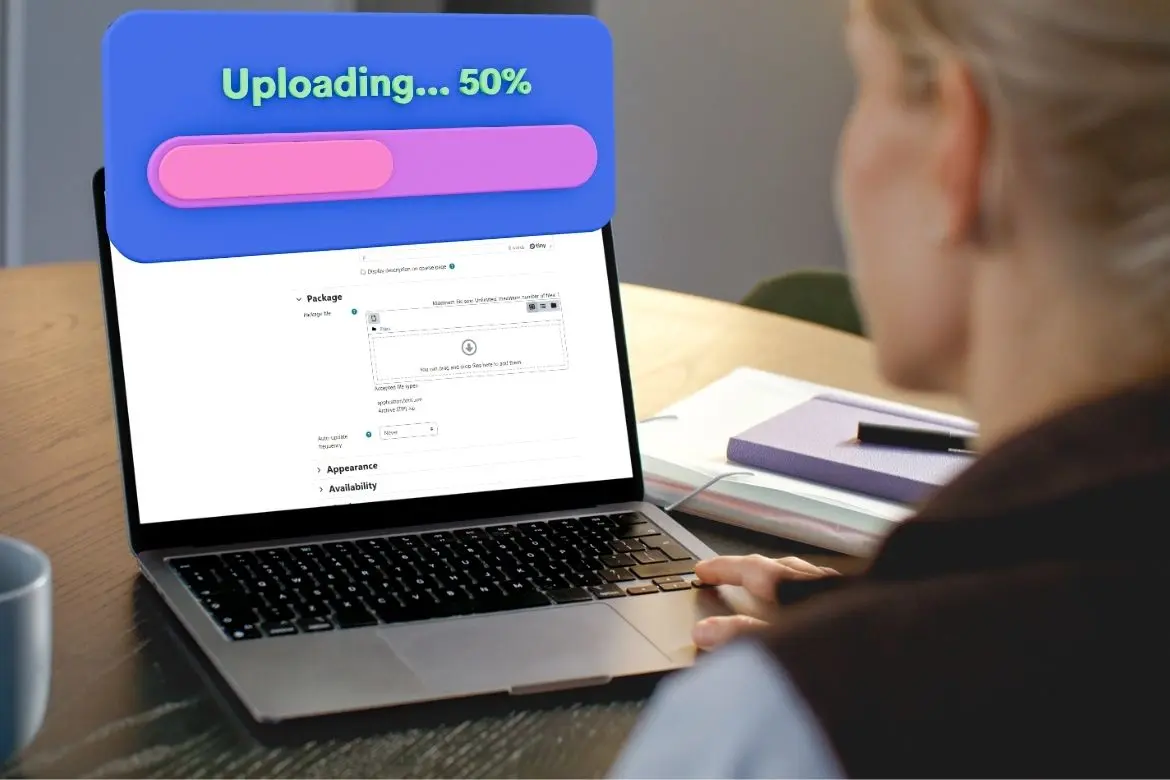
If you searched Google for “How To Upload a SCORM Package to an LMS”, you’ve come to the right place.
This guide walks through every step required to upload and launch a SCORM package across the most common Learning Management Systems.
If your business is working with a digital training provider like us, you will typically receive a SCORM package to upload to your LMS. This is a .zip file that contains your full eLearning course or 3D web simulation, designed to be uploaded into your LMS so it can be accessed, tracked, and reported on. Unlike normal files, this isn’t a file you open directly on your computer. It must be uploaded into an LMS to function correctly.
Whether your SCORM package is a standard eLearning module or a more advanced interactive unity simulation, the process of uploading it follows a similar structure, but there are some small differences in each LMS can cause confusion or errors if not done correctly.
Keep reading to follow step by step instructions for each platform, along with common issues and how to resolve them.
Before You Start (Applies to All LMS Platforms)
Before beginning the process of uploading SCORM files to the LMS, make sure to check these first:
File ends in .zip
Check file size limits for your LMS (Unity simulations can be large)
You have permission to edit courses or add content in your LMS.
What You’ve Been Given by Your Training Provider
A .zip file containing the full training course or simulation
The package will be exported in a specific SCORM version (1.2 or 2004). Confirm this with your provider so it matches your LMS requirements
Do not unzip the file—it must be uploaded as-is
SCORM packages can be either:
Standard eLearning modules – slide-based courses with quizzes, videos, and text
Unity simulations (WebGL) – interactive 3D simulations requiring more system resources and proper LMS/browser configuration
Both types require an LMS or SCORM hosting service to function correctly.
Step by Step Process (Works Conceptually for Any LMS)
Every LMS follows the same structure, even if buttons are named differently:
Open your course
Add new content or activity
Choose SCORM or upload package
Upload the
.zipfileConfigure tracking settings
Save and test
Below are exact steps for the most common LMS platforms.
Platform-Specific Guides to Uploading SCORM Files to LMS
LMS Platform | SCORM Support | Supported Versions | Upload Steps |
|---|---|---|---|
Moodle | Full | 1.2 & 2004 | Turn editing on → Add activity → SCORM package → Upload zip → Configure completion → Save and display |
TalentLMS | Full | 1.2 & 2004 | Add content → SCORM → Upload zip → Configure completion → Save |
Docebo | Full | 1.2 & 2004 | Courses → Training Material → Add Training Material → SCORM → Upload → Configure tracking → Save |
Litmos LMS | Partial | 1.2 only (2004 limited) | Open course content area → Create → SCORM Package → Upload → Configure completion → Save |
Blackboard Learn | Partial | 1.2 only | Content → Build Content → SCORM → Upload → Configure tracking → Submit |
Oracle Learning (Oracle LMS / Cloud) | Full | 1.2 & 2004 | My Client Groups → Learning → Content → Create → Online Content → SCORM Content → Upload .zip → Configure completion → Submit |
Absorb | Partial | 1.2 only | Upload SCORM zip → Configure tracking → Save |
iSpring Learn | Partial | 1.2 only (2004 limited) | Upload SCORM zip → Configure tracking → Save |
LearnUpon | Full | 1.2 & 2004 | Open Course → Content → Add SCORM → Upload SCORM zip → Configure settings → Save |
Bridge | Partial | 1.2 only | Upload Courses → Upload SCORM zip file → Configure settings → Publish |
Brightspace / D2L | Partial | 1.2 & partial 2004 | Upload SCORM zip → Configure tracking → Save |
How to Upload a SCORM Package to Moodle
Steps
Go to My courses
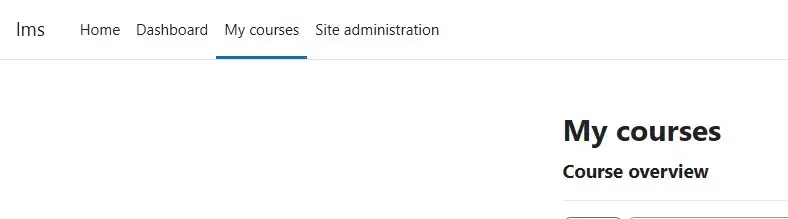
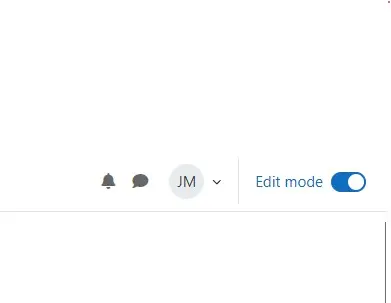
Click Turn editing on (Top-right of screen)
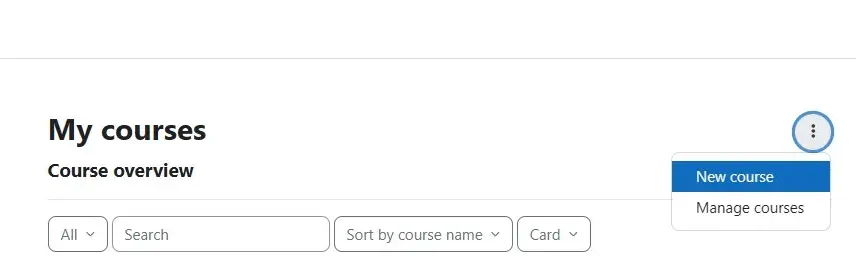
Click the Three Dots → New course
Give the course a name, and other required details → Scroll to bottom → Save
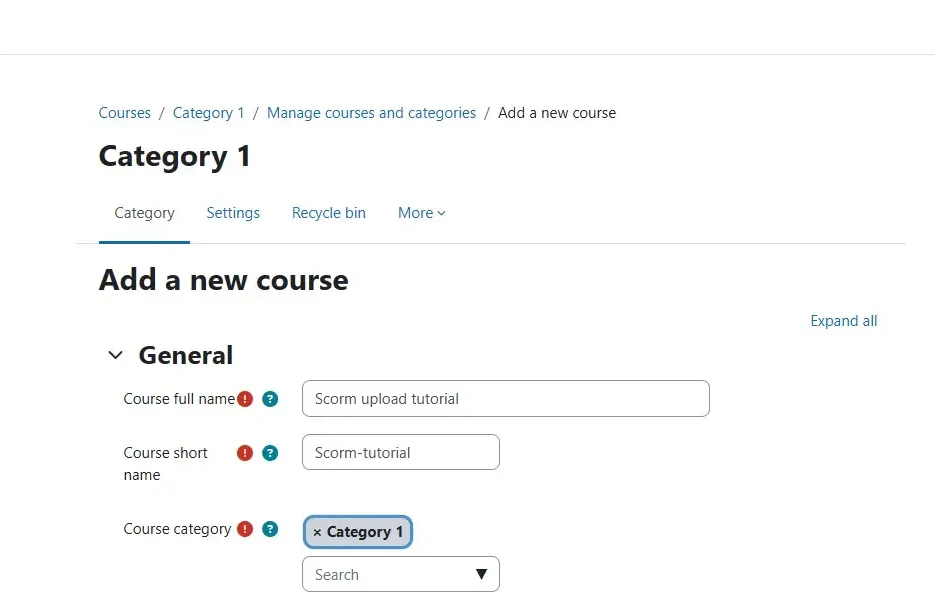
In your course → Click Add an activity or resource
Select SCORM package
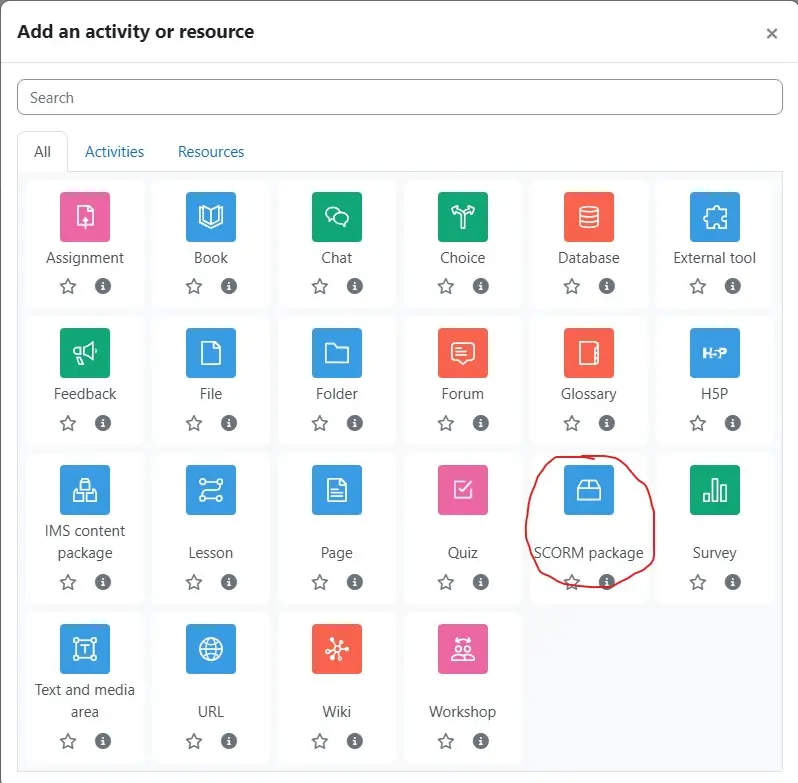
Add a name → Under Package → Package file → Upload the
.zipfileConfigure settings
Click Save and display
The below guides all follow a similar process, these guides are verified using the guidance and information available from each LMS’s website directly.
How to Upload a SCORM Package to Talentlms
Steps
Log in and open your course
Click Add Content → SCORM
Upload the
.zipfileSet completion settings
Click Save
How to Upload a SCORM Package to Docebo
Steps
Open your course
Go to Training Material → Add Training Material → SCORM
Upload the
.zipfileConfigure tracking options
Click Save
How to Upload a SCORM Package to Litmos LMS
Steps
Open your course
Click Add Content → SCORM
Upload the
.zipfileConfigure completion settings
Click Save
How to Upload a SCORM Package to Blackboard Learn
Steps
Open your course content area
Click Create → SCORM Package
Upload the
.zipfileConfigure tracking settings
Click Submit
How to Upload a SCORM Package to Oracle Learning (Oracle LMS / Cloud)
Go to My Client Groups → Learning → Content
Click Create
Select Online Content
Choose SCORM Content (or SCORM as the content type)
Upload the
.zipfile (Your SCORM Package)Configure completion criteria, tracking, and launch settings
Submit
How to Upload a SCORM Package to Absorb
Steps
Open your course
Click Actions→ Import Course → SCORM 1.2 or SCORM 2004 (Dependent on your package, ask the team that created the file if you are unsure)
Choose File → Upload the
.zipfileClick Import
How to Upload a SCORM Package to iSpring Learn
Steps
Open your course
Click Add → Upload
Upload the
.zipfileConfigure options
Click Save
How to Upload a SCORM Package to LearnUpon
Steps
Open your course
Click Content → Add SCORM
Upload the
.zipfileConfigure settings
Click Save
How to Upload a SCORM Package to Bridge
Steps
Open the courses page (Author → Courses page)
Click Upload Coures
Upload the
.zipfileConfigure settings
Publish course
How to Upload a SCORM Package to Brightspace / D2L
Steps
Open your course
Click Upload/Create → New SCORM Object/xAPI Object
Upload the
.zipfileConfigure options
Click Save
Troubleshooting (Applies to Any LMS)
1. File Won’t Upload
Ensure the file you upload is still a .zip, do not unzip/extract the file before uploading.
Do not unzip and rezip incorrectly
Check file size limits
If file size limits are your issue, Certain enterprise LMS (like Oracle LMS, Cornerstone OnDemand, Moodle with file access) allow admins to upload the SCORM package directly via server file system or FTP and then register it in the LMS. In these unique cases, you would be required to unpack the .zip file.
2. Course Won’t Launch
Disable popup blockers
Try another browser
Check LMS supports SCORM version (1.2 or 2004)
Unity3D Simulation: If you are running a Unity simulation and you get an error or loading that never ends, refer to these steps.
3. Progress Not Saving
Check completion settings in LMS
Ensure SCORM version matches LMS capability
Test with a different user account
Unity3D Simulation: If you are running a Unity simulation and your progress isn’t saving between sessions, this feature needs to be implemented by the ones that developed the simulation. It’s important to make it clear to your training provider that this feature is needed before development.
4. Blank Screen or Errors
Usually caused by:
Broken SCORM package
Missing files inside zip
Solution: request a new export from provider
Unity3D Simulation: If you are running a Unity simulation and you get an error, refer to these steps.
5. It Uploads but Doesn’t Track
Most common issue
Caused by mismatch between:
SCORM settings (authoring tool)
LMS tracking rules
Unity3D Simulation: If you are running a Unity simulation and you have this issue, refer to these steps.
Unity/WebGL SCORM Troubleshooting
If the course fails to load:
Open developer console:
Chrome / Edge / Firefox:
F12or right-click → Inspect → ConsoleSafari: Enable Develop menu →
Option + Command + C
Save the console log:
Chrome / Edge: Right-click → Save as
.txtFirefox: Right-click → Export →
.txtSafari: Copy all text → save
.txt
Send the log file to your training provider
Notes:
Large simulations may load slowly, give it a few minutes
If your LMS is on HTTP instead of HTTPS, make sure you’re SCORM package was designed for use in a HTTP environment. For Unity simulations packaged for SCORM, the files need to be configured uniquely to work with different systems. Make sure to inform your training provider of these details before buying training from them.
Thank you for using this guide, I hope it’s been able to help you. SHIIFT is a provider of blended training solutions including VR training, e-learning, or web-based 3d simulations that run directly from your LMS with SCORM.
So if you’re interested in having custom e-learning module or 3d SCORM simulation for your company, get in touch to discuss everything you need to know to get started.
Solutions
Safety Training
Hazard recognition
Spot risks before incidents
/solutions/hazard-recognition-training
Solutions
Safety Training
Life-Saving Rules
Critical rules as decisions
/solutions/life-saving-rules-training
Solutions
Safety Training
Behavioral safety
Stop work authority, used
/solutions/behavioral-safety-training
Solutions
Safety Training
Hand safety
Fewer hand injuries
/solutions/hand-safety-training
Solutions
Safety Training
PPE selection & use
The right kit, worn right
/solutions/ppe-training
Solutions
Safety Training
H2S & gas awareness
The invisible hazard, visible
/solutions/h2s-gas-awareness-training
Solutions
Safety Training
Fire & emergency response
Beyond the routine drill
/solutions/fire-safety-emergency-response-training
Solutions
Safety Training
Toolbox talks
Five strong minutes weekly
/solutions/toolbox-talk-content
Solutions
Safety Training
Permit to work
PTW judgment scenarios
/solutions/permit-to-work-training
Solutions
Safety Training
Isolation & LOTO
Safe energy isolation
/solutions/isolation-lockout-tagout-training
Solutions
Safety Training
Confined space entry
Entries and rescue response
/solutions/confined-space-entry-training
Solutions
Safety Training
Working at height
Falls and dropped objects
/solutions/working-at-height-training
Solutions
Safety Training
Lifting & rigging
Safer critical lifts
/solutions/lifting-rigging-training
Solutions
Safety Training
Hot work
Sparks under control
/solutions/hot-work-training
Solutions
Safety Training
Line of fire
See the energy path
/solutions/line-of-fire-training
Solutions
Safety Training
Driver safety
Safer driving and journeys
/solutions/driver-safety-training
Solutions
Safety Training
Electrical safety
Safe isolation, arc flash aware
/solutions/electrical-safety-training
Solutions
Safety Training
Excavation work
Trenches and buried services
/solutions/excavation-safety-training
Solutions
Safety Training
Ergonomics
Strain prevention that sticks
/solutions/ergonomics-training
Solutions
Safety Training
Situational awareness
Noticing change on site
/solutions/situational-awareness-training
Solutions
Onboarding & People
Site orientation
Inductions before day one
/solutions/site-orientation-onboarding
Solutions
Onboarding & People
Expatriate workforce
Localized multilingual training
/solutions/expatriate-workforce-training
Solutions
Onboarding & People
Visitor inductions
Pre-arrival essentials
/solutions/visitor-induction-training
Solutions
Onboarding & People
Leadership training
Judgment, developed
/solutions/leadership-training
Solutions
Onboarding & People
Soft skills
Conversations that work
/solutions/soft-skills-training
Solutions
Onboarding & People
Safety leadership
Frontline supervisor skills
/solutions/safety-leadership-training
Solutions
Onboarding & People
Human factors
Error traps and defenses
/solutions/human-factors-training
Solutions
Operations & Technical
Process & procedures
Step-by-step competence
/solutions/process-procedure-training
Solutions
Operations & Technical
Operational readiness
Ready before start-up
/solutions/operational-readiness
Solutions
Operations & Technical
Technical training
Complex systems explained
/solutions/technical-training
Solutions
Operations & Technical
Control room & DCS
Alarms and upset response
/solutions/control-room-training
Solutions
Operations & Technical
Crane operation
Operators, banksmen, supervisors
/solutions/crane-operation-training
Solutions
Operations & Technical
Forklift operation
Operators, pedestrians, supervisors
/solutions/forklift-operation-training
Solutions
Operations & Technical
Maintenance & turnarounds
Outage preparation
/solutions/maintenance-turnaround-training
Solutions
Operations & Technical
Process safety
Barriers made visible
/solutions/process-safety-training
Solutions
Compliance & Modernization
Lessons learned (LFI)
Incidents into training
/solutions/lessons-learned-training
Solutions
Compliance & Modernization
Spill response
Environmental first response
/solutions/spill-response-training
Solutions
Compliance & Modernization
Hazardous materials
Storage, handling, transport
/solutions/hazardous-materials-training
Solutions
Compliance & Modernization
Security awareness
Physical and cyber vigilance
/solutions/security-awareness-training
Services
Content Production
Training Videos
Filmed through our global crew network
/services/workplace-safety-training-videos
A safety orientation film produced for Milestone Environmental Services.

Services
Content Production
2D & 3D Animation
Engineering-accurate visuals
/services/2d-3d-animation
From a 3D animation built to supplement an ADNOC e-learning module.

Services
Content Production
Safety Campaigns
Sustained behavior change
/services/safety-campaigns
The award-recognized Maersk hand safety campaign.
Services
Content Production
Training posters & print
Site-specific print & visual aids
/services/training-posters
A printed lessons learned handbook produced for Petroleum Development Oman.
Services
Content Production
PowerPoint Materials
Trainer-led deck rebuilds
/services/powerpoint-training-materials
Presenting an ADNOC Safety Day engagement deck.

Services
Interactive Training
E-Learning
SCORM online modules
/services/e-learning
Scenario questions inside a client e-learning module.

Services
Interactive Training
Virtual Reality (VR)
Immersive headset training
/services/virtual-reality-vr-training
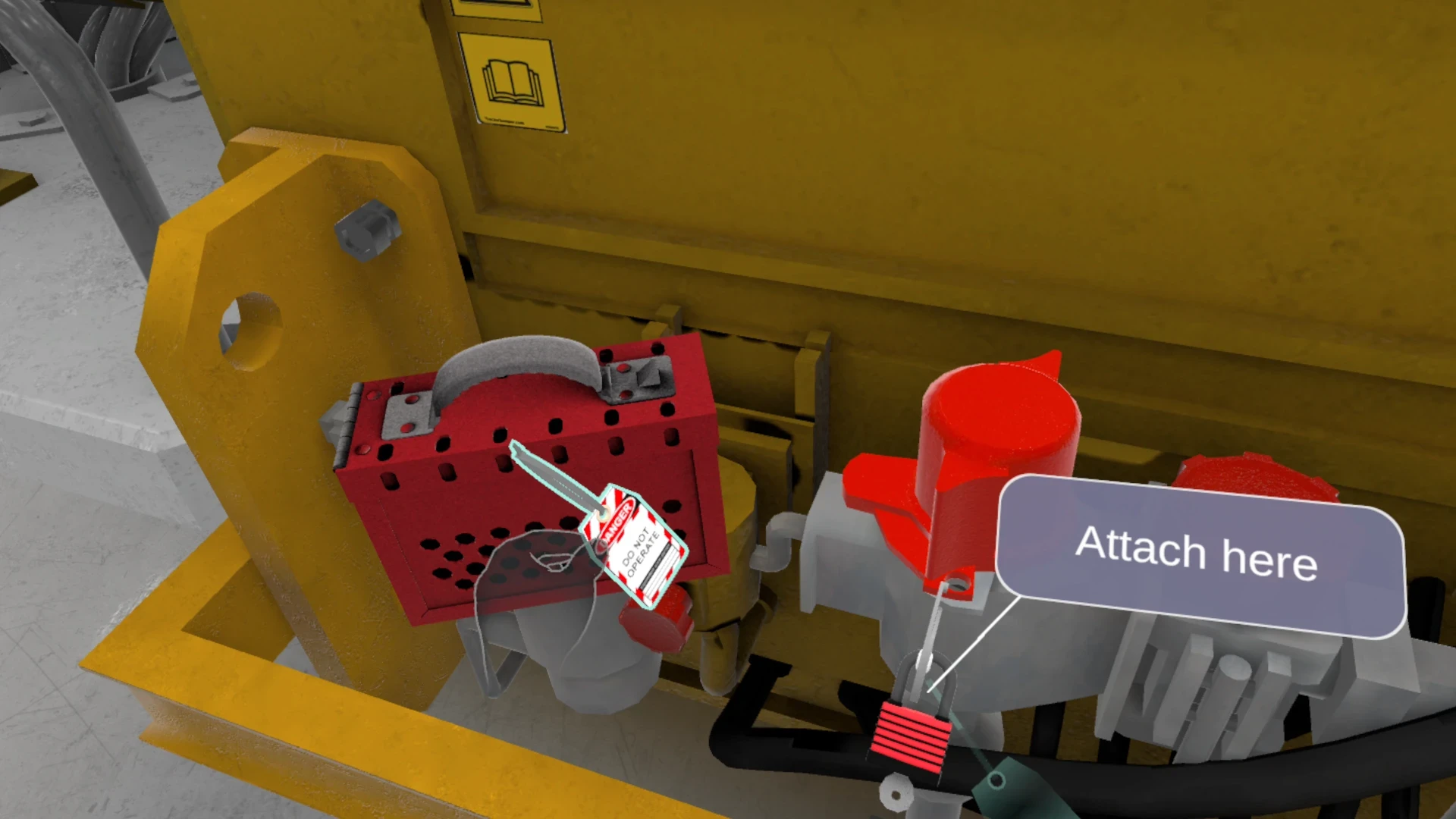
Lockout tagout training with full hand tracking in VR.
Services
Interactive Training
Flat-Screen Simulations
Desktop, web & mobile simulations
/services/flat-screen-simulation-training
SHIIFT simulations running on laptops and mobile devices.

Services
Interactive Training
Digital Twins
Navigable sites & equipment
/services/digital-twins
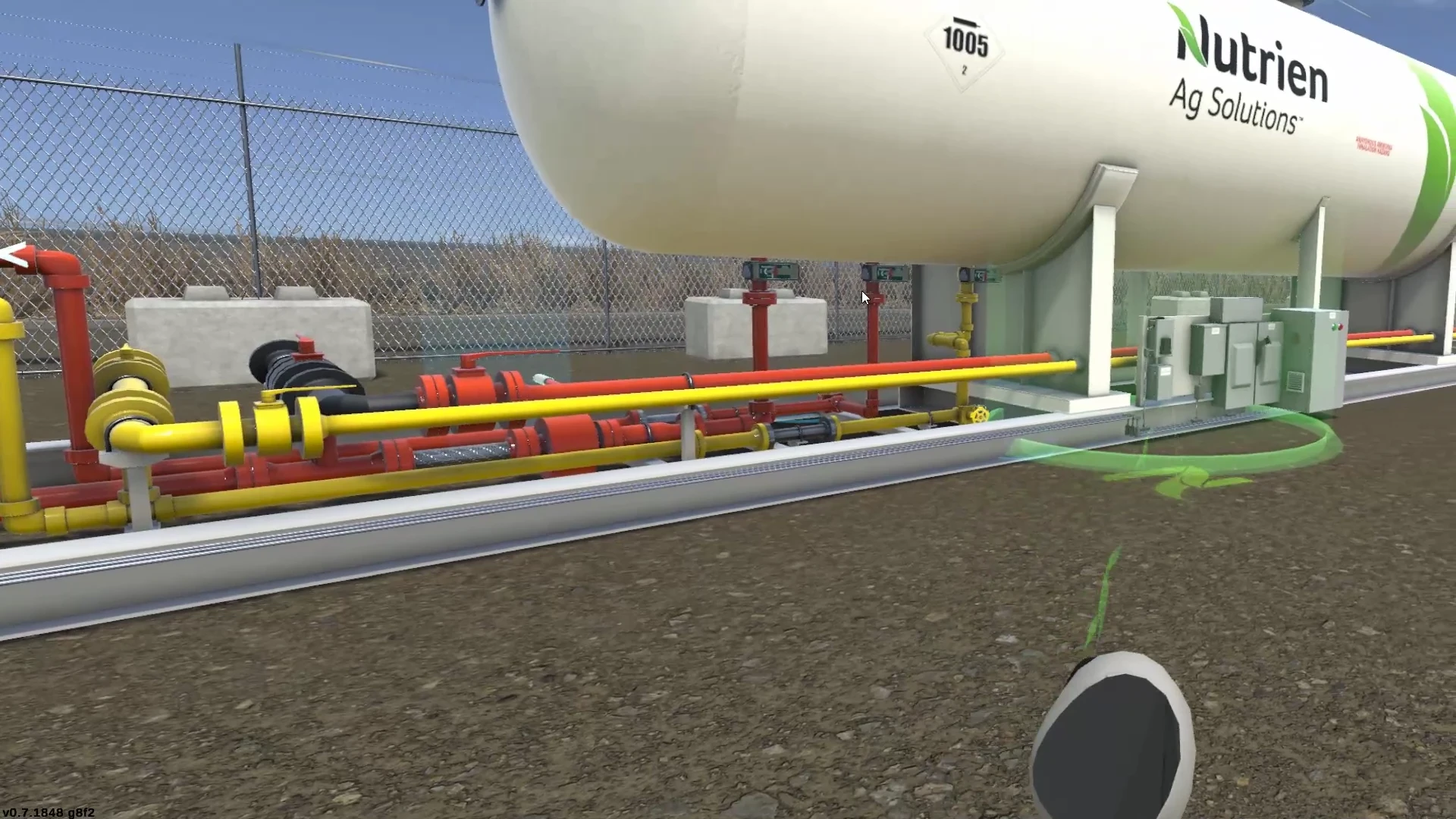
A navigable 3D replica of Nutrien's ammonia transfer plant.
Approach
How We Work
Our approach
Analysis, design, delivery, validation
/approach
Approach
How We Work
SCORM & LMS Integration
Tracking in your systems
/services/scorm-lms-integration
Approach
How We Work
Scenario-Based Assessments
Competency you can prove
/services/scenario-based-assessments