Office Ergonomics: Introduction
A well-arranged workstation is essential for maintaining comfort, productivity, and long-term musculoskeletal health. Many office workers and remote professionals spend hours every day seated at a desk, often with chairs, monitors, and keyboards that are improperly adjusted. Over time, poor posture can lead to neck and back pain, shoulder tension, and repetitive strain injuries in the wrists and hands.
Ergonomics is the science of designing your workspace to support your body naturally and efficiently. By carefully arranging your chair, monitor, input devices, and accessories, you can prevent discomfort, enhance focus, and reduce the risk of long-term health problems.
Understanding Your Current Workstation
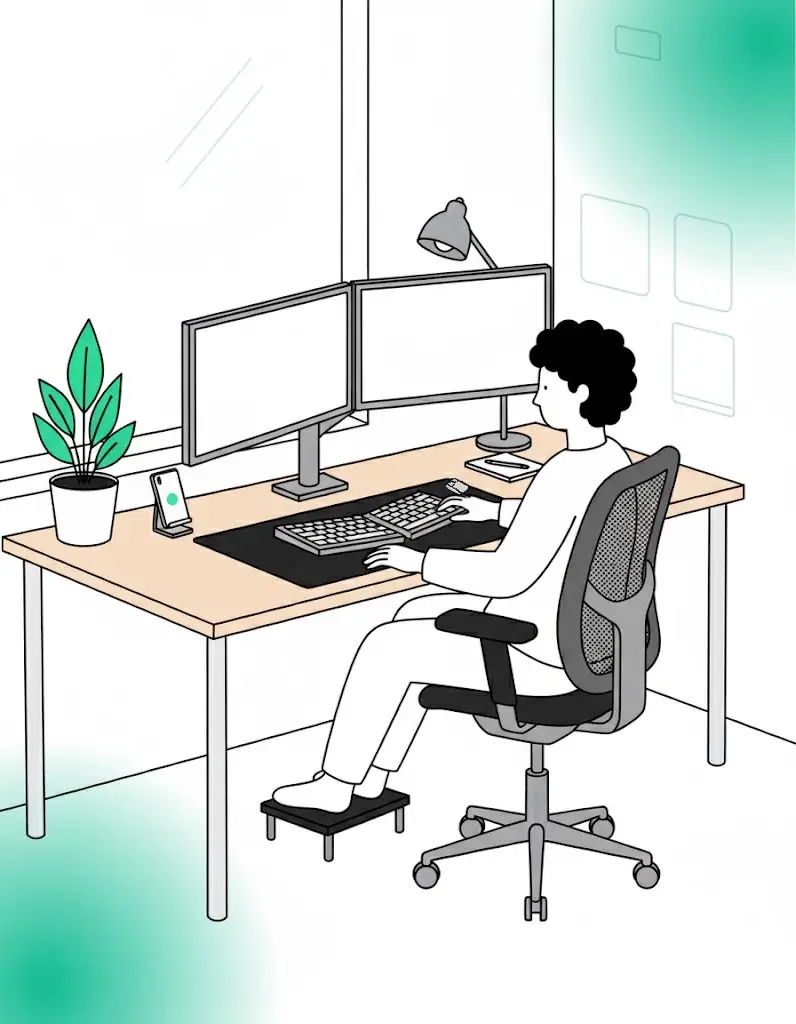
Before making any adjustments, it’s crucial to first evaluate your current workstation so we know what you have to work with. An ideal ergonomic setup includes an adjustable chair with lumbar support, a desk at an appropriate height, a monitor positioned at eye level, and input devices placed to allow natural wrist and arm alignment.
Accessories such as footrests, document holders, and dual monitors can further enhance comfort and productivity.
Understanding your starting point will help you identify which areas require immediate attention and which adjustments will provide the greatest benefit, so by observing your current posture and workstation layout you’ll be able to make targeted, effective changes after reading the steps below.
Step 1: Adjust Your Chair
Start with your chair, the foundation of good posture. Proper seat height, back support, and armrest positioning ensure your spine stays aligned and your shoulders remain relaxed.
Adjust the seat height so your feet rest flat on the floor, with your thighs parallel to the ground; if your feet cannot reach the floor comfortably, place a footstool or small platform under your feet to provide support, which helps maintain proper alignment of your knees and reduces pressure on your lower back.
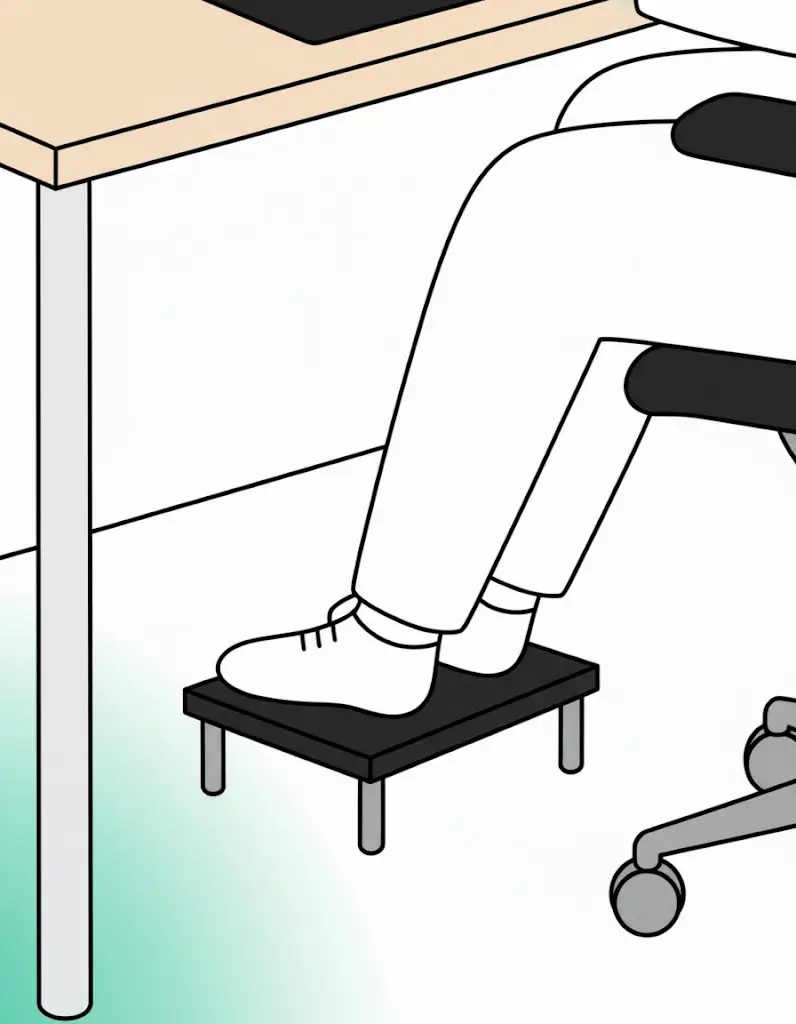
{caption}Use a footstool if your feet don’t reach the ground
Ensure your knees are bent at roughly 90 degrees, keeping your thighs parallel to the floor, which helps distribute your body weight evenly across the chair and prevents excessive strain on your lower back, hips, and legs during long periods of sitting.
Adjust the armrests so your elbows bend at approximately 90 degrees while your shoulders remain relaxed; this reduces tension in the shoulders and upper back, allows your arms to move naturally while typing or using the mouse, and prevents hunching or leaning forward.
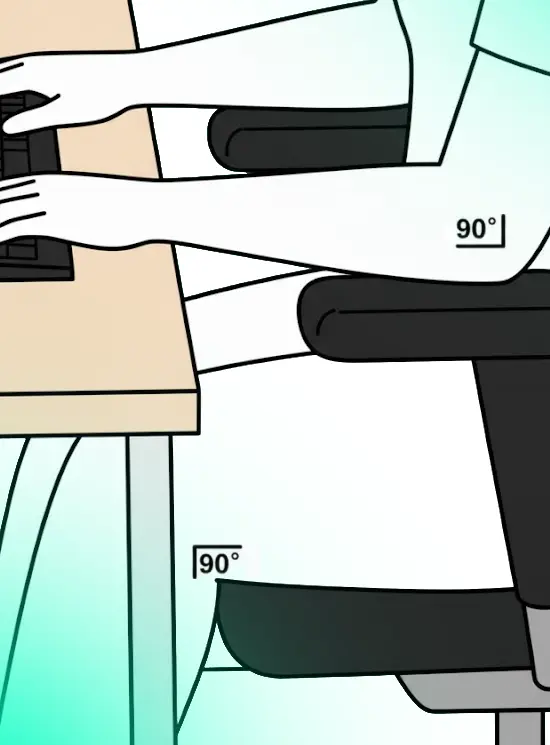
{caption}Remember the 90 degree rule for elbows and knees (approximately)
Position lumbar support so it fits snugly against the natural curve of your lower back, which encourages you to sit upright rather than slouch, reduces tension in your spine, and maintains the natural alignment of your vertebrae for long-term spinal health.
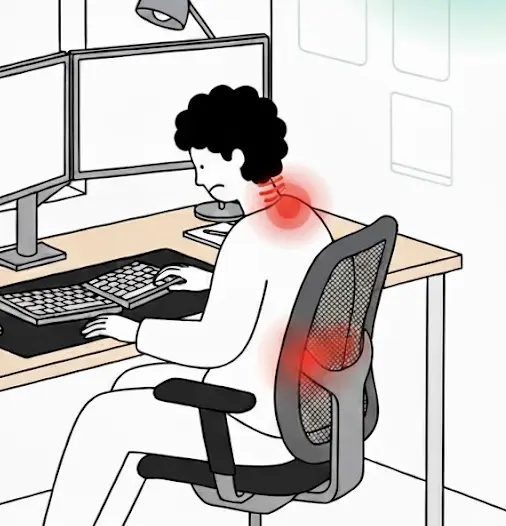
{caption}Avoid slouching or you’ll cause stress on your neck and back
Step 2: Adjust Your Monitor
Proper monitor placement is critical for preventing neck strain, eye fatigue, and general discomfort during extended periods of computer work. Adjusting the distance, height, and angle of your monitor ensures that your head, neck, and eyes remain in a neutral position while maintaining a clear and comfortable view of your screen.
Place the monitor about an arm’s length away from your eyes, ensuring that you can read text and view images clearly without leaning forward or squinting; this distance helps maintain a natural line of sight and reduces tension in the neck and upper back caused by craning forward.
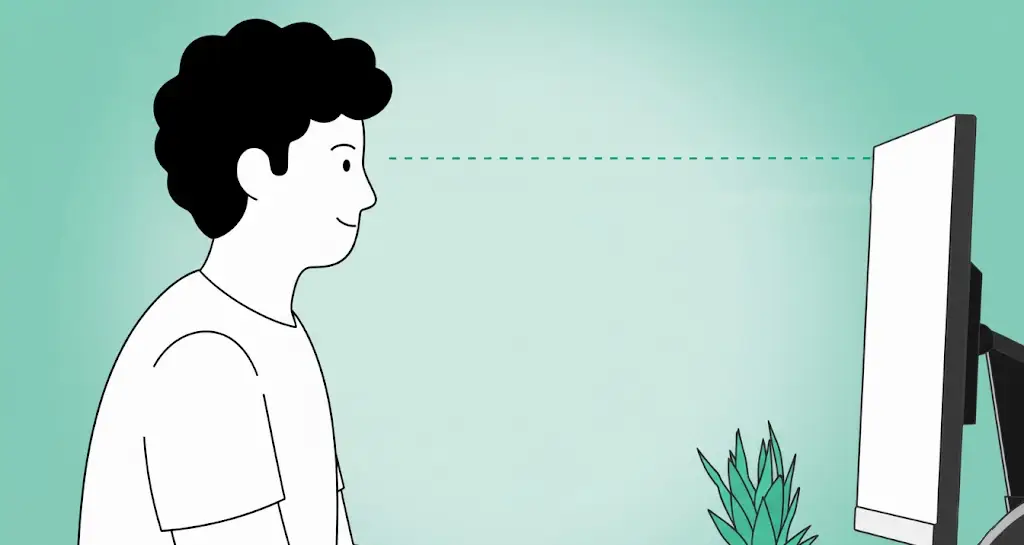
Adjust the height so the top of the screen aligns with or slightly below your eye level, allowing your gaze to fall naturally downward across the screen; this reduces the likelihood of tilting your head up or down, which can lead to chronic neck pain, headaches, and upper shoulder tension.
For dual monitors, position your primary screen directly in front of you and angle any secondary monitors slightly toward your body, so you can switch between screens without twisting your torso or overextending your neck; this arrangement promotes a neutral spine position and allows your body to remain aligned even while multitasking across multiple displays.
Unless you use both monitors the same amount, in which case your head should be centered between them with them both angled toward you.
Step 3: Position Your Keyboard and Mouse
Correct keyboard and mouse placement is essential for maintaining neutral wrist and arm alignment, reducing the risk of repetitive strain injuries and discomfort during prolonged computer use.
Proper positioning allows your arms to move naturally, keeps your wrists straight, and prevents unnecessary tension in your shoulders and forearms, all of which contribute to long-term comfort and productivity.
Keep the keyboard close enough to your body so that your elbows remain bent at approximately 90 degrees and your forearms remain parallel to the floor; this placement allows your arms to remain relaxed, minimizes overreaching, and ensures that your wrists do not bend awkwardly while typing.
Position the mouse directly beside the keyboard at the same height to enable smooth, natural movement without stretching or twisting your arm; having the mouse within easy reach prevents shoulder strain and allows for precise cursor control during tasks.
Avoid resting your wrists on the desk edge, which can create pressure points and lead to discomfort over time; instead, maintain a straight alignment of the wrists while typing or using the mouse, and consider using a wrist pad to provide gentle support if necessary.
Keep your hands and fingers relaxed while typing or using the mouse, avoiding excessive force or tension; this helps prevent fatigue, reduces the risk of repetitive strain injuries such as carpal tunnel syndrome, and promotes more efficient, comfortable movement during daily computer tasks.
Step 4: Organize Accessories
Keeping your workspace organized and functional helps reduce unnecessary movement and strain while improving focus and efficiency. The goal is to keep frequently used items within easy reach and to create a layout that supports a natural workflow.
A well-arranged workstation not only improves comfort but also helps maintain proper posture and prevents repetitive stretching or twisting that can lead to injury over time.
Place your phone, notepad, or other frequently used tools within arm’s reach to avoid constant leaning or twisting; this ensures your shoulders and spine stay aligned and minimizes repetitive side movements that can lead to discomfort during long work sessions.
Store less frequently used items, such as files or reference materials, further away or in drawers, allowing your immediate workspace to remain uncluttered and easy to navigate; this promotes an efficient workflow and reduces distractions caused by unnecessary items on the desk.
Step 5: Adjust Lighting and Screen Settings
Good lighting reduces eye strain and helps you maintain a comfortable posture throughout the day. Balancing both your room lighting and screen settings keeps your eyes relaxed and prevents headaches or fatigue.
Position your monitor to avoid glare from windows or overhead lights, ideally setting it perpendicular to natural light sources.
Use blinds or curtains to control brightness and prevent harsh reflections on your screen.
Match your screen brightness to the room’s lighting so it’s easy to read without squinting.
Turn on blue light filters or night mode later in the day to reduce eye strain and improve comfort.
Windows systems have a ‘night light’ feature accessible from the notification screen. Alternatively, use f.lux which is available for mac windows and linux.
Adjust text size and contrast so you can read easily without leaning forward.
Step 6: Take Breaks and Move
Even with perfect ergonomics, sitting for long periods is harmful. Short breaks and movement help maintain comfort and circulation.
Follow the 20-20-20 rule: every 20 minutes, look at something 20 feet away for 20 seconds.
Stand, stretch, or walk for a few minutes each hour.
Perform gentle stretches for shoulders, neck, and back.
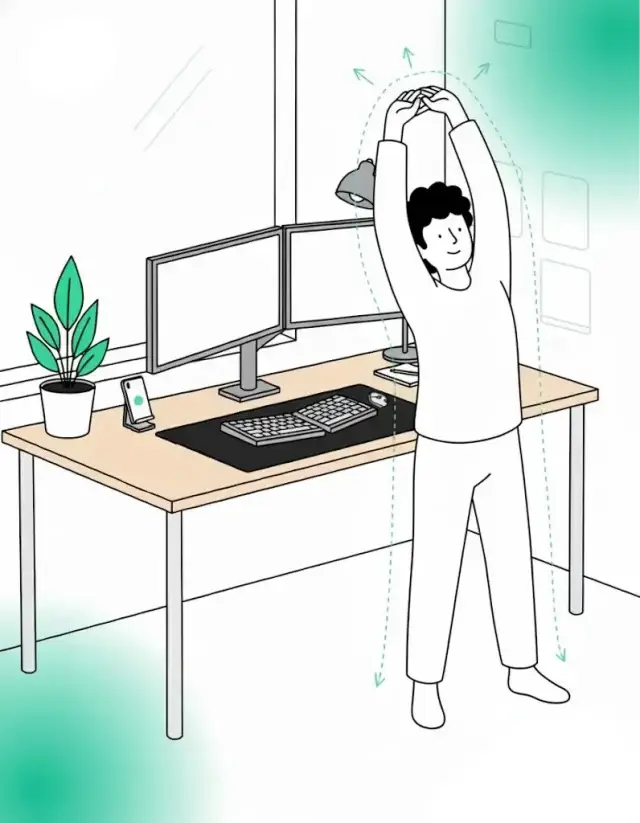
{caption}Have a stretch every now and again
Office Ergonomics: Conclusion
Setting up your workstation correctly is one of the simplest and most effective ways to improve comfort, focus, and long-term health. Every small adjustment, from chair height and monitor placement to lighting and accessory organization, helps to reduce strain and encourages better posture throughout the day.
For tailored workplace training or interactive learning solutions that reinforce safe and healthy work habits, contact us at SHIIFT. Contact Us
Our digital training tools and immersive simulations can help your team apply ergonomic principles and other safety practices effectively in real-world environments.
Solutions
Safety Training
Hazard recognition
Spot risks before incidents
/solutions/hazard-recognition-training
Solutions
Safety Training
Life-Saving Rules
Critical rules as decisions
/solutions/life-saving-rules-training
Solutions
Safety Training
Behavioral safety
Stop work authority, used
/solutions/behavioral-safety-training
Solutions
Safety Training
Hand safety
Fewer hand injuries
/solutions/hand-safety-training
Solutions
Safety Training
PPE selection & use
The right kit, worn right
/solutions/ppe-training
Solutions
Safety Training
H2S & gas awareness
The invisible hazard, visible
/solutions/h2s-gas-awareness-training
Solutions
Safety Training
Fire & emergency response
Beyond the routine drill
/solutions/fire-safety-emergency-response-training
Solutions
Safety Training
Toolbox talks
Five strong minutes weekly
/solutions/toolbox-talk-content
Solutions
Safety Training
Permit to work
PTW judgment scenarios
/solutions/permit-to-work-training
Solutions
Safety Training
Isolation & LOTO
Safe energy isolation
/solutions/isolation-lockout-tagout-training
Solutions
Safety Training
Confined space entry
Entries and rescue response
/solutions/confined-space-entry-training
Solutions
Safety Training
Working at height
Falls and dropped objects
/solutions/working-at-height-training
Solutions
Safety Training
Lifting & rigging
Safer critical lifts
/solutions/lifting-rigging-training
Solutions
Safety Training
Hot work
Sparks under control
/solutions/hot-work-training
Solutions
Safety Training
Line of fire
See the energy path
/solutions/line-of-fire-training
Solutions
Safety Training
Driver safety
Safer driving and journeys
/solutions/driver-safety-training
Solutions
Safety Training
Electrical safety
Safe isolation, arc flash aware
/solutions/electrical-safety-training
Solutions
Safety Training
Excavation work
Trenches and buried services
/solutions/excavation-safety-training
Solutions
Safety Training
Ergonomics
Strain prevention that sticks
/solutions/ergonomics-training
Solutions
Safety Training
Situational awareness
Noticing change on site
/solutions/situational-awareness-training
Solutions
Onboarding & People
Site orientation
Inductions before day one
/solutions/site-orientation-onboarding
Solutions
Onboarding & People
Expatriate workforce
Localized multilingual training
/solutions/expatriate-workforce-training
Solutions
Onboarding & People
Visitor inductions
Pre-arrival essentials
/solutions/visitor-induction-training
Solutions
Onboarding & People
Leadership training
Judgment, developed
/solutions/leadership-training
Solutions
Onboarding & People
Soft skills
Conversations that work
/solutions/soft-skills-training
Solutions
Onboarding & People
Safety leadership
Frontline supervisor skills
/solutions/safety-leadership-training
Solutions
Onboarding & People
Human factors
Error traps and defenses
/solutions/human-factors-training
Solutions
Operations & Technical
Process & procedures
Step-by-step competence
/solutions/process-procedure-training
Solutions
Operations & Technical
Operational readiness
Ready before start-up
/solutions/operational-readiness
Solutions
Operations & Technical
Technical training
Complex systems explained
/solutions/technical-training
Solutions
Operations & Technical
Control room & DCS
Alarms and upset response
/solutions/control-room-training
Solutions
Operations & Technical
Crane operation
Operators, banksmen, supervisors
/solutions/crane-operation-training
Solutions
Operations & Technical
Forklift operation
Operators, pedestrians, supervisors
/solutions/forklift-operation-training
Solutions
Operations & Technical
Maintenance & turnarounds
Outage preparation
/solutions/maintenance-turnaround-training
Solutions
Operations & Technical
Process safety
Barriers made visible
/solutions/process-safety-training
Solutions
Compliance & Modernization
Lessons learned (LFI)
Incidents into training
/solutions/lessons-learned-training
Solutions
Compliance & Modernization
Spill response
Environmental first response
/solutions/spill-response-training
Solutions
Compliance & Modernization
Hazardous materials
Storage, handling, transport
/solutions/hazardous-materials-training
Solutions
Compliance & Modernization
Security awareness
Physical and cyber vigilance
/solutions/security-awareness-training
Services
Content Production
Training Videos
Filmed through our global crew network
/services/workplace-safety-training-videos
A safety orientation film produced for Milestone Environmental Services.

Services
Content Production
2D & 3D Animation
Engineering-accurate visuals
/services/2d-3d-animation
From a 3D animation built to supplement an ADNOC e-learning module.

Services
Content Production
Safety Campaigns
Sustained behavior change
/services/safety-campaigns
The award-recognized Maersk hand safety campaign.

Services
Content Production
Training posters & print
Site-specific print & visual aids
/services/training-posters
A printed lessons learned handbook produced for Petroleum Development Oman.

Services
Content Production
PowerPoint Materials
Trainer-led deck rebuilds
/services/powerpoint-training-materials
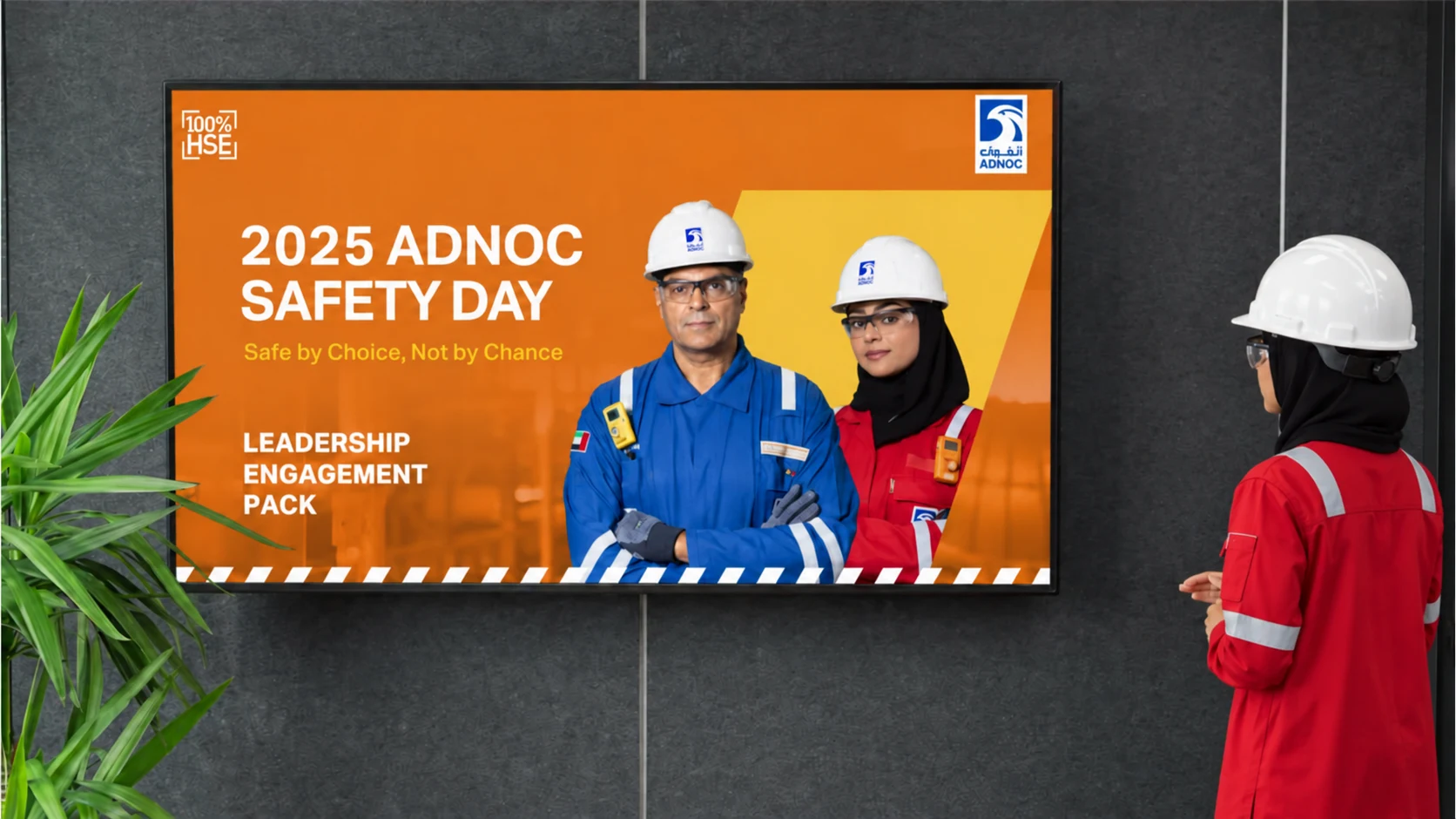
Presenting an ADNOC Safety Day engagement deck.
Services
Interactive Training
E-Learning
SCORM online modules
/services/e-learning
Scenario questions inside a client e-learning module.

Services
Interactive Training
Virtual Reality (VR)
Immersive headset training
/services/virtual-reality-vr-training
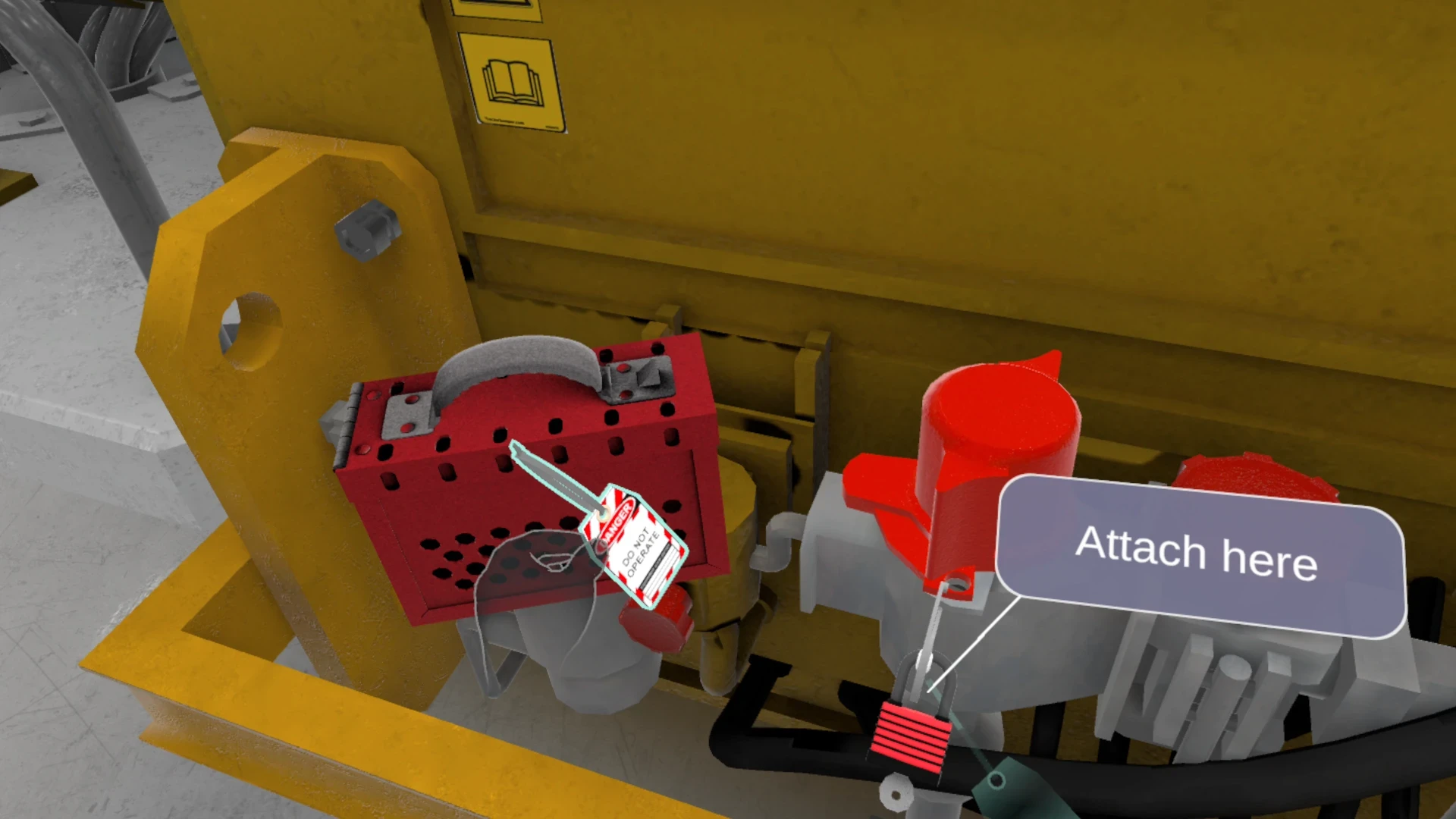
Lockout tagout training with full hand tracking in VR.
Services
Interactive Training
Flat-Screen Simulations
Desktop, web & mobile simulations
/services/flat-screen-simulation-training
SHIIFT simulations running on laptops and mobile devices.

Services
Interactive Training
Digital Twins
Navigable sites & equipment
/services/digital-twins
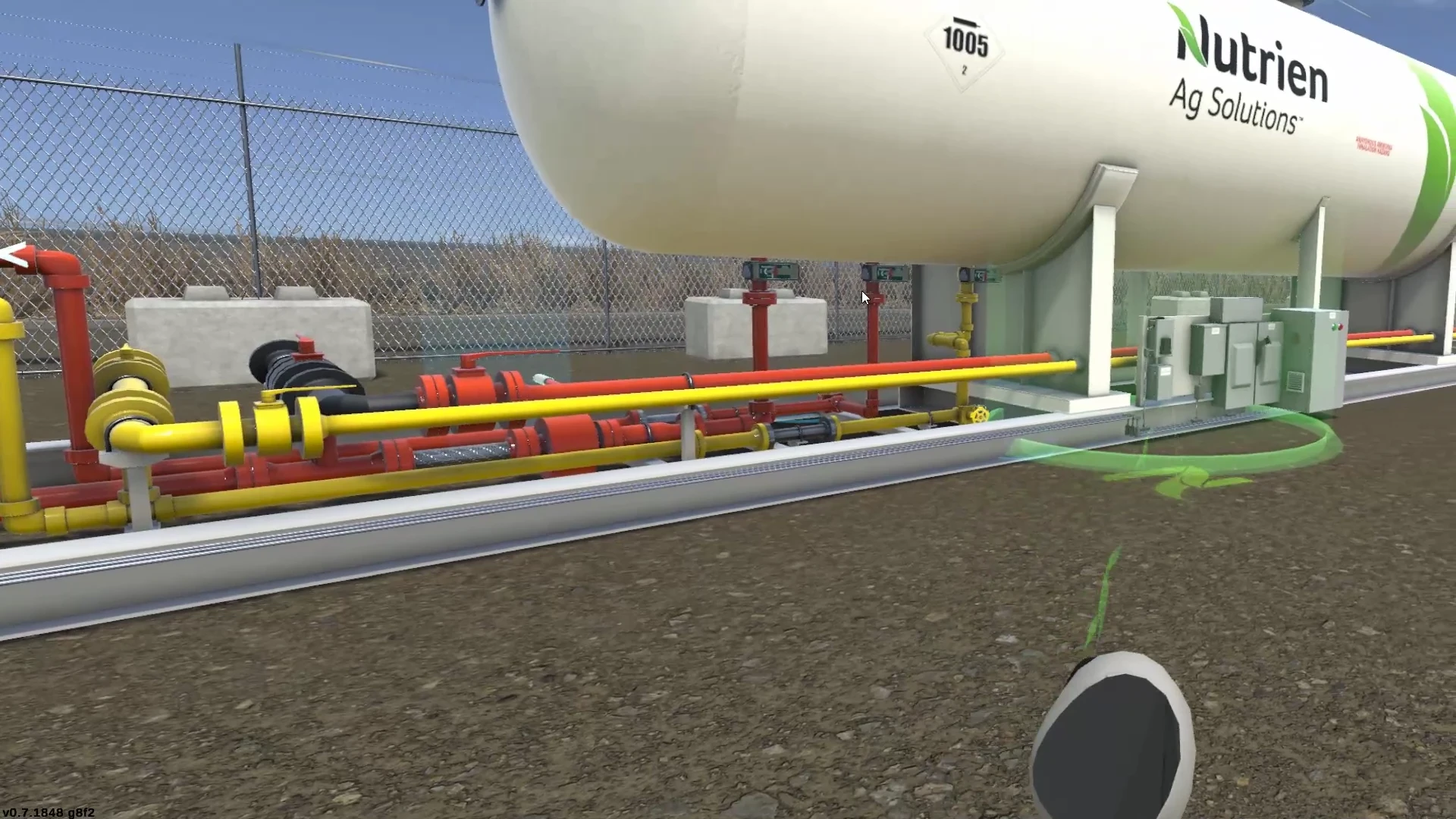
A navigable 3D replica of Nutrien's ammonia transfer plant.
Approach
How We Work
Our approach
Analysis, design, delivery, validation
/approach
Approach
How We Work
SCORM & LMS Integration
Tracking in your systems
/services/scorm-lms-integration
Approach
How We Work
Scenario-Based Assessments
Competency you can prove
/services/scenario-based-assessments